⚠️ Disclosure: I was given access to AI Studios via an Enterprise account for testing. Everything you read below is based on my own 3-day hands-on experience. No part of this review was written by the company.
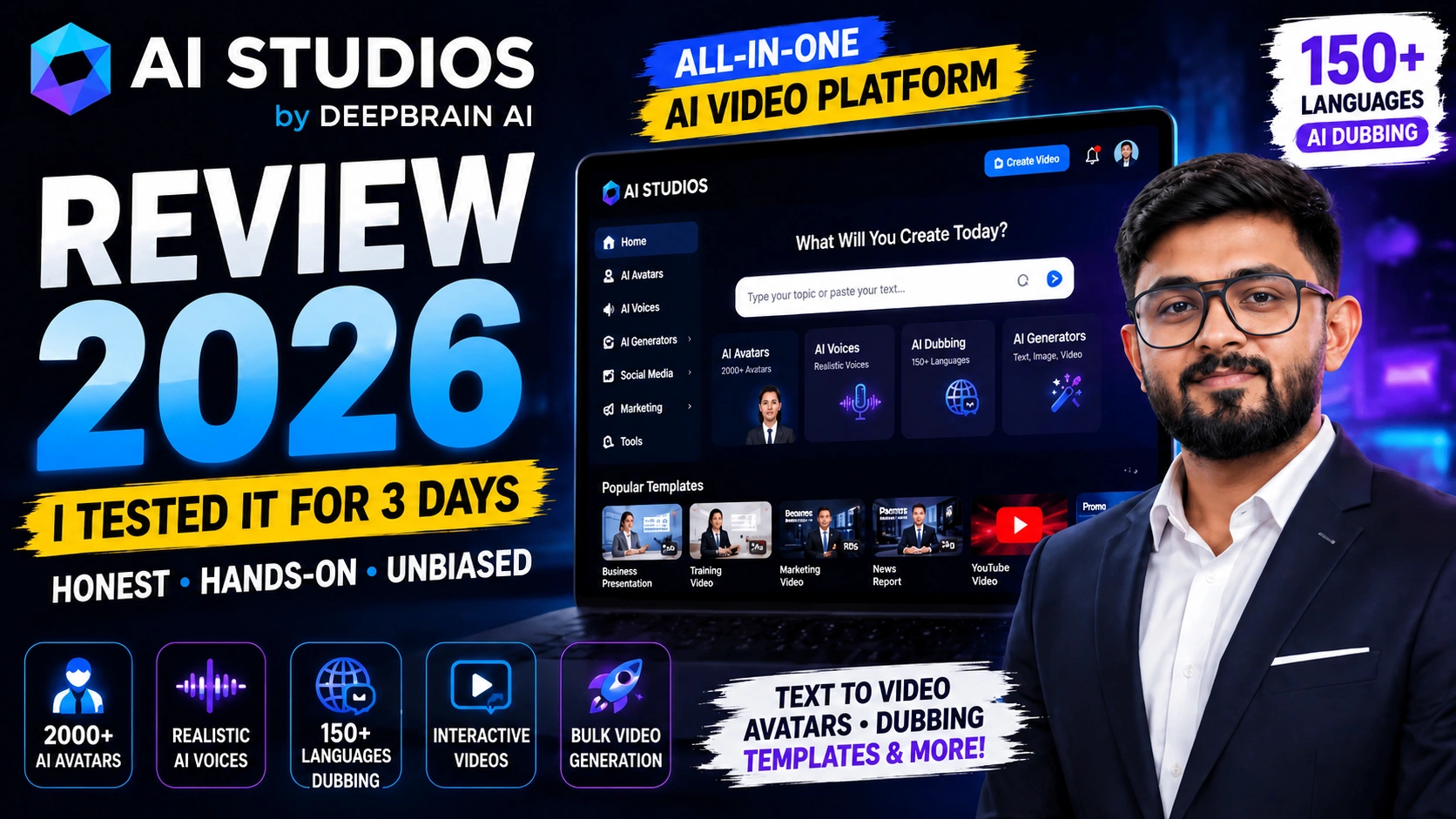
Honestly? I wasn’t expecting much when I first opened AI Studios. I’ve been around the AI video space long enough to know that most tools overpromise and underdeliver — you get blocky avatars, robotic voices, and a UI that feels like it was designed in 2019. So when the platform loaded and I saw this —
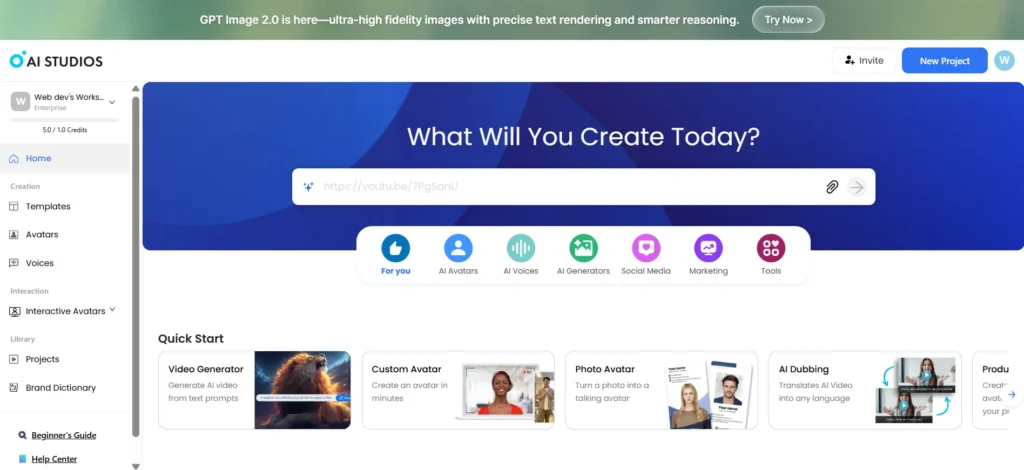
The dashboard is clean. Not startup-demo clean, but genuinely well-designed. The “What Will You Create Today?” prompt bar sits right in the middle, and the category tabs below it — AI Avatars, AI Voices, AI Generators, Social Media, Marketing, Tools — immediately tell you what kind of platform this is. It’s not a one-trick pony.
But a pretty dashboard is nothing without substance. So I spent 3 days going deep into every major section. Here’s everything I found.
First Impressions: It Doesn’t Feel Like an AI Tool
Most AI platforms have a tell. There’s usually this moment — during signup, or while you’re clicking around — where the product reveals its limitations. A tooltip that doesn’t work, a render that looks plastic, a feature that’s technically there but practically useless. I was waiting for that moment in AI Studios.
It took longer than I expected to find it.
The platform is built by DeepBrain AI, a company that’s been in the synthetic-human business since 2016. They’ve got offices in Seoul, Palo Alto, and Beijing, and over 2 million users have passed through this platform. That kind of scale starts to show in the product — the rough edges that plague newer tools just aren’t there.
“This is the first AI video platform where I didn’t immediately feel like I was fighting the tool to get what I wanted.”
The Avatar Library — Where It Starts Getting Interesting
I jumped into the Avatars section on Day 1. AI Studios has over 2,000 stock avatars, and browsing them is actually enjoyable — they’re organized by name, style (upper body, global, full body), and use case. The avatars don’t look like CGI characters from 2015. They look like real presenters.
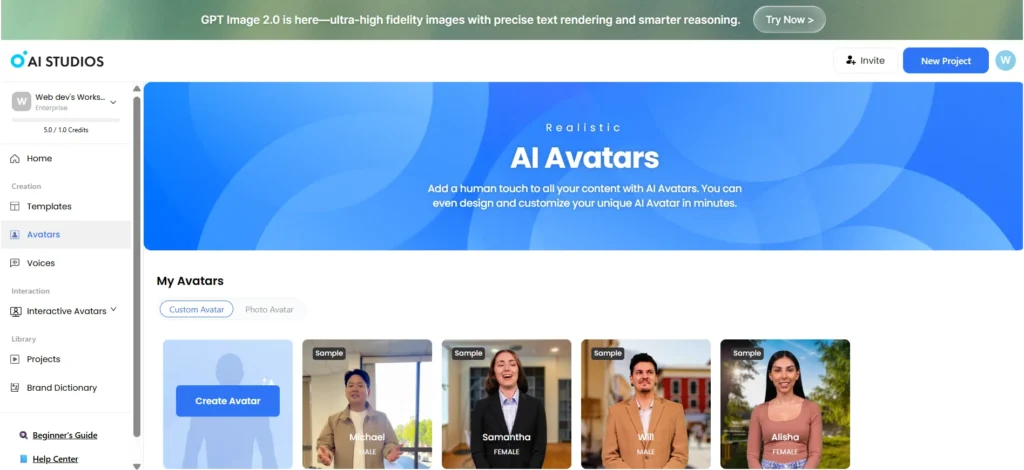
What struck me was how consistent the quality is across the library. Usually with these platforms, the top 10 avatars are great and everything else drops off. Here, I scrolled through 40–50 avatars and couldn’t find one that looked noticeably worse than the others. The lip sync is natural, the expressions aren’t frozen, and the background options are clean.
The two Quick Start options at the top — Custom Avatar and Photo Avatar — are worth mentioning separately. Custom Avatar lets you record a short video of yourself and create a digital version that can deliver unlimited content without you ever sitting in front of a camera again. Photo Avatar is a lighter option: upload a single photo and it creates a basic talking avatar from that image. Both worked well in my tests, with Custom Avatar producing noticeably more natural results for longer scripts.
Custom Avatar — Your Digital Twin
Record once, publish forever. Once your avatar is created, you can run unlimited scripts through it without additional filming. For YouTube creators, trainers, or brands that need consistent on-camera presence — this changes the math on video production entirely.
AI Voices — Better Than I Expected, and That’s Saying Something
Voice quality is where AI video tools usually fall apart for me. The voices are technically correct but emotionally flat. You can hear the machine. AI Studios’ voice library surprised me.
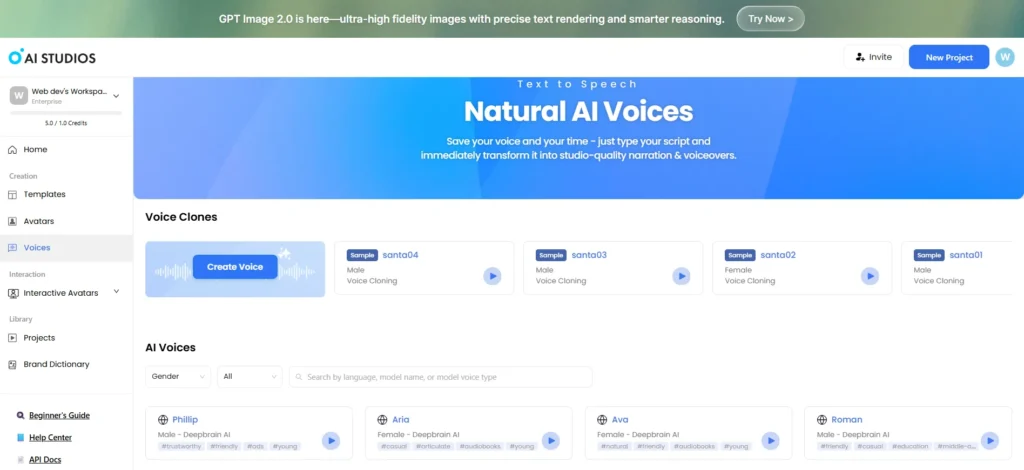
The voices are tagged with personality descriptors — #trustworthy, #natural, #middle-aged, #commerce, #confident, #casual — and these tags aren’t just marketing. Eleanor, tagged as a natural education voice, genuinely sounds like a presenter you’d trust in an online course. Dominique, tagged for commerce, has an energy that fits a product explainer without sounding salesy.
Voice Cloning is available as a standalone feature in this section, separate from the dubbing pipeline. You record a sample, the platform processes it, and you get a cloned version of your voice that can read any script in that same voice. The output quality is strong — the cloned voice maintains the natural rhythm and cadence of the original, making it genuinely usable for professional content.
AI Generators — This Is Where the Platform Gets Ambitious
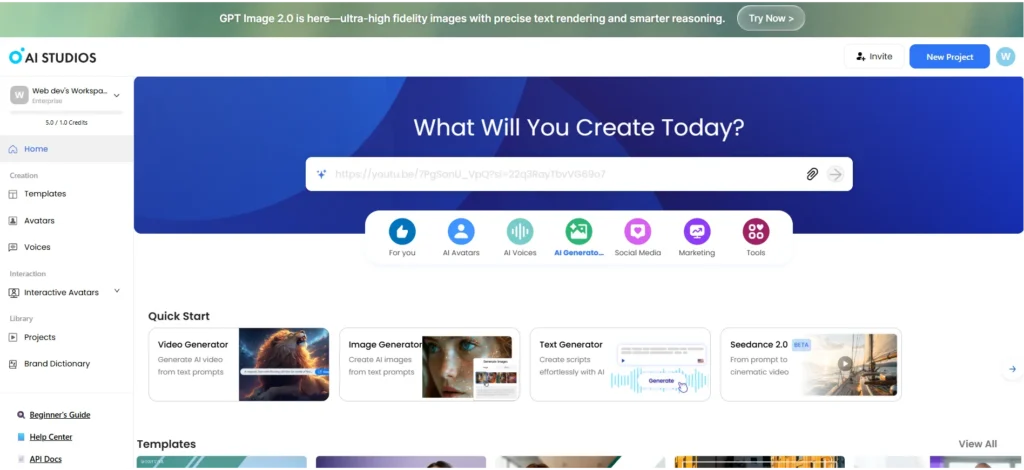
I didn’t expect this section to be here. Most avatar platforms stop at text-to-video with a presenter. AI Studios goes further — they’ve integrated multiple generative AI video models directly into the platform.
The Video Generator creates footage from text prompts using models including Kling, Veo, and Nano Banana. The Image Generator produces visuals for use within video projects. The Text Generator handles scripting. And Nano Banana — currently in beta — generates cinematic-style video from a prompt alone. The output quality from these models is strong — particularly Kling for cinematic footage and Nano Banana for faster, cost-efficient generation.
The key advantage here isn’t the individual models — it’s the integration. Instead of generating footage in Kling, downloading it, uploading it to an avatar tool, adding a presenter, then exporting, you can do all of that inside one workspace. That matters when you’re working on real production timelines.
Multiple AI Models, One Platform
Kling, Veo, and Nano Banana, Nano Banana — having access to competing video generation models in one interface means you can pick the right tool for each project without managing multiple subscriptions or export workflows.
Social Media Tools — The AI Dubbing Section
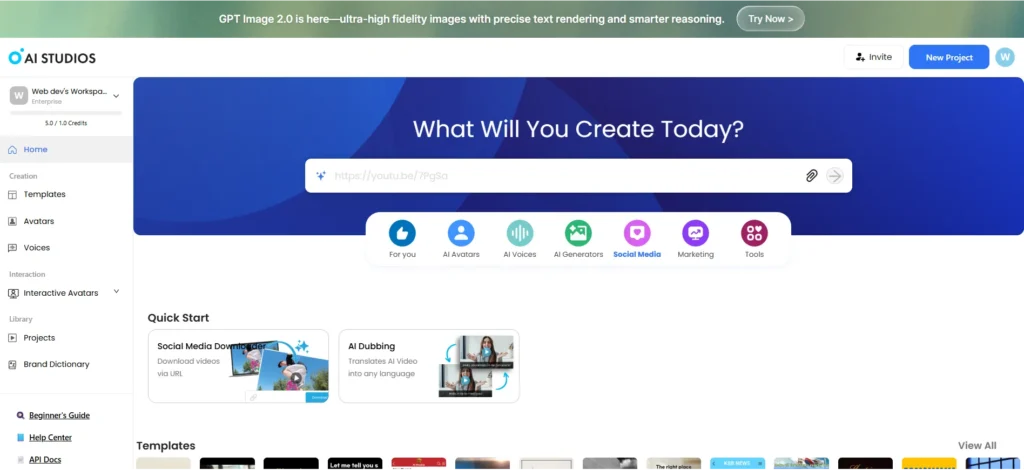
The Social Media section caught me off-guard. I expected social media templates — instead, the two Quick Start tools here are a Social Media Downloader and, more importantly, AI Dubbing.
I tested AI Dubbing with an English-language video, converting it into Hindi. The process was: upload the video, select the target language, review the auto-generated translated script in the proofreading editor, then render. The full workflow took about 12 minutes for a 3-minute video. The output had matched lip sync — the speaker’s mouth movements re-animated to fit the Hindi audio — and the voice preservation was noticeably better than other dubbing tools I’ve tried.
AI Studios supports full lip-synced dubbing in 150+ languages and dialects, with text-to-speech in 150+. For any creator trying to reach international audiences, this alone is a significant value proposition. The Social Media Downloader (download videos from URLs) is a minor but genuinely useful utility alongside it.
Marketing Tools — Bulk, Scale, and Personalization
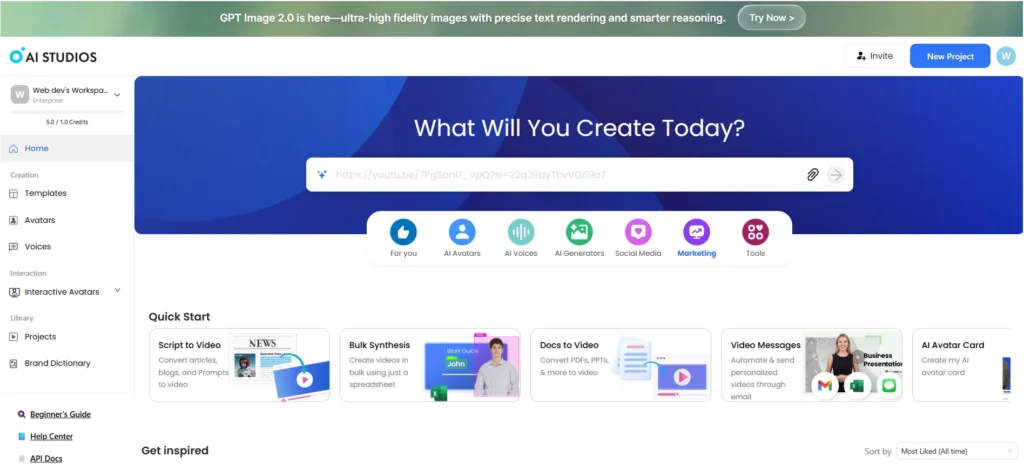
The Marketing section is where the platform starts to feel genuinely enterprise-grade. Four tools define it:
Script to Video converts articles, blog posts, or prompts into finished videos. I pasted a 600-word blog post and got a narrated video with b-roll and an avatar presenter in about 8 minutes. It wasn’t perfect — the pacing needed some adjustment — but as a first draft, it was further along than anything I’d have started from scratch.
Bulk Synthesis is the most underrated feature I found in my entire week of testing. You upload a spreadsheet, map columns to video variables (name, product, CTA, etc.), and the platform generates hundreds of personalized videos in one run. For sales teams or outreach campaigns, this is a serious capability.
Docs to Video handles PDFs, PPTs, and documents, converting them into narrated video presentations. And Video Messages lets you automatically send those personalized videos via email integrations (Gmail, Excel connectors). The whole section feels designed by someone who actually talked to marketing teams about their real workflows.
Templates — More Than I Expected
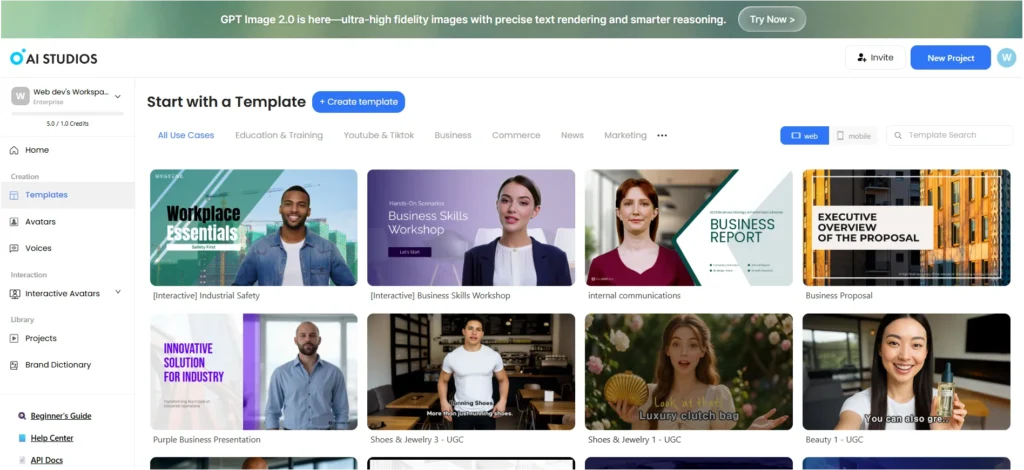
The template library is large and actually well-organized. What I wasn’t expecting was the [Interactive] tag on some templates — Industrial Safety, Business Skills Workshop, and others. These aren’t just pre-designed layouts. They’re templates for building videos where viewers can click buttons, take quizzes, or branch to different video paths based on their choices.
Interactive video is a feature that most platforms charge extra for or don’t have at all. AI Studios bakes it into the template system, which means it’s accessible — you don’t have to know interactive video theory to start building it. You pick a template, follow the structure, and the interactivity is built in.
The commerce templates featuring real presenter-style avatars for shoes, jewelry, and beauty products were impressive for e-commerce use cases. They looked like genuine UGC (user-generated content) — the kind of video that performs on TikTok or Instagram without screaming “this is AI-generated.”
How to Create Your First Video in AI Studios
- Sign In and Land on the Dashboard: The home screen greets you with the “What Will You Create Today?” bar. You can type a topic here for a quick start, or navigate via the category tabs to the specific tool you need.
- Pick Your Starting Point: Choose from New Project (blank canvas), a Template, or a Quick Start tool like Script to Video or Docs to Video. For first-timers, a template is the fastest path to a good result.
- Select an Avatar and Voice: Browse the 2,000+ avatar library. Filter by style, gender, or use case. Then pick a voice from the library — preview it before committing. The voice tags (#trustworthy, #natural) are actually helpful here.
- Add Your Script: Paste your script directly, use the AI Text Generator for help, or upload a document. The script editor shows timing estimates per slide so you can balance content and pacing.
- Customize and Generate: Set your background, add media, adjust layout. Hit Generate Video. Rendering time varies by video length and complexity. Download as MP4 when complete.
Who Should Actually Use AI Studios?
Yes, this is for you if: You run an e-learning business and need to localize courses into multiple languages. You lead an HR team producing training content that needs regular updates.
Skip it if: You’re a solo creator making daily TikToks (the platform’s strengths are wasted on short-form daily content). You only need a single quick talking-head video and don’t need multilingual, interactive, or enterprise features. You have no localization or training needs at all.
See It for Yourself — Real Output Samples
The best way to judge an AI video platform is to see what it actually produces. Below are real samples generated directly inside AI Studios during testing — an AI avatar video, an AI-generated image, and a voice sample. These were not polished in post-production; this is the raw output from the platform.
Text to Script
Custom AI Avatar
Ai Dubbing
Frequently Asked Questions
Yes. AI Studios offers a free tier that lets you explore the dashboard, browse avatars, and test the core video creation workflow — For detailed plan information and what each tier includes, visit the official AI Studios pricing page.
Yes — two ways. The Photo Avatar option turns a single still photo into a talking avatar. Custom Avatar (higher-tier plans) lets you record a short video to create a much more expressive, realistic digital version of yourself that can read any script indefinitely.
Better than I expected. The lip-sync on dubbed videos genuinely re-animates the speaker’s mouth to match the translated audio — it’s not just an audio swap. The output I produced in Hindi from an English source was publishable quality with minor script edits in the proofreading editor. 150+ languages are supported for full lip-synced dubbing; 150+ for text-to-speech.
Yes, very well. Stock avatars can deliver scripts without you appearing on camera. The Social Media templates are designed for TikTok/YouTube formats. And AI dubbing lets you publish the same video in multiple languages to grow international audiences simultaneously.