
Every “free” AI email automation guide eventually reveals a $20/month paywall. This one does not. Every method here is genuinely free to start — no credit card, no free trial that expires, no gotcha.
You will get 5 working methods ranked from easiest to most powerful, with exact steps for each. By the end of this guide, you will have at least one running — today.
Quick Comparison — All 5 Free Methods at a Glance
Before diving in, here is how all five methods stack up so you can jump straight to the one that fits your situation:
| # | Method | Setup Time | Truly Free? | Auto-Sends? | Best For |
|---|---|---|---|---|---|
| 1 | ChatGPT Prompts | 0 min | ✓ Yes | ✗ Manual | Anyone, immediate start |
| 2 | Gmail Smart Reply + Gemini | 0 min | ✓ Built-in | ✗ 1-click | Gmail users, daily speed boost |
| 3 | Zapier Free Tier + AI | 30 min | ⚡ 100 tasks/mo | ✓ Yes | Non-technical, low volume |
| 4 | n8n Self-Hosted | 2–3 hrs | ✓ Unlimited | ✓ Yes | Developers, high volume |
| 5 | Outlook + Microsoft Copilot | 0 min | ⚡ Basic free | ✗ Manual | Microsoft 365 users |
Which One First? If you want results in the next 10 minutes — start with Method 1 (ChatGPT prompts). If you want actual automation running without you — go to Method 3 (Zapier) or Method 4 (n8n). Everything in between is a stepping stone.
Method 01 of 05
ChatGPT Prompts — Zero Setup, Works Right Now
This is not “full automation” — you still click send. But it cuts your email writing time by 70–80% with zero setup, zero cost, and zero learning curve. Start here if you have never used AI for email before.
How It Works
You paste an incoming email into ChatGPT with a pre-written instruction prompt. ChatGPT drafts the reply. You read it, edit if needed, copy, paste into your inbox, send. Total time: 30–60 seconds per email instead of 5–10 minutes.
Step-by-Step Setup
- Open chat.openai.com — free account, no payment needed: The free tier uses GPT-4o mini which handles email drafting very well. No upgrade needed to start.
- Save this master prompt somewhere you can quickly paste it: Notion, Apple Notes, a sticky, anywhere — the key is having it one copy away at all times.
- Paste the prompt + the incoming email → get your draft: Review, edit anything that does not sound like you, copy into your inbox and send.
- Refine in the same conversation if needed: Type “Make it shorter”, “Sound less formal”, or “Add a question at the end” — ChatGPT adjusts without losing context.
Your Starter Prompt (Copy This Now)
You are my professional email assistant. I will paste an email below. Write a reply that:
– Addresses their specific question or request directly
– Matches the tone of their email (formal if they are formal, friendly if casual)
– Is under 100 words — no padding, no filler
– Does not start with "I hope this email finds you well" or similar
– Ends with exactly one clear next step or question
Email to reply to:
[Paste the email here]
3 Power Variations for Different Situations
Politely declining a request:
Reply to this email declining the request. Be warm but firm. Under 70 words. Offer one brief reason and, where appropriate, one alternative. Do not over-apologize.
Email: [paste]
Handling follow-ups with no response:
Write a follow-up to this email I sent 5 days ago with no reply. Under 60 words. Not pushy. End with a yes/no question so they can reply in one word.
Original email I sent: [paste]
Catching up on long email threads:
Summarise this email thread in 3 bullet points, then write a reply that moves the conversation forward. Reply under 80 words.
Thread: [paste full thread]
Pros
- Works in literally 2 minutes
- Completely free — no limits on the free tier for this use
- Works for any email client — Gmail, Outlook, Apple Mail, anything
- Results improve with better prompts over time
Cons
- Not automatic — you still do the copy/paste manually
- Cannot monitor your inbox on its own
- No memory between sessions on free tier
Make It Faster — ChatGPT Custom Instructions: On the free tier, go to Settings → Personalization → Custom Instructions. Add: “I am a [your role]. When I paste emails, always reply as my assistant in under 100 words, direct tone, no filler phrases.” Now every new conversation already knows your style — no prompt pasting needed.
Method 02 of 05
Gmail Smart Reply + Gemini — Already In Your Inbox
Most Gmail users do not know they already have two AI reply features built in — completely free. No extensions, no accounts, no configuration. They are just sitting there waiting to be used.
Feature 1 — Gmail Smart Reply
Smart Reply shows 2–3 one-sentence reply options at the bottom of every email you open. They update based on the email content — not generic “Sounds good!” suggestions (well, sometimes it is, but when that is the right answer, one click beats typing it out).
- Open any email in Gmail on desktop or mobile: Look for 2–3 small grey reply buttons below the email body — they appear automatically.
- Click one to open the compose window pre-filled: The suggestion appears in your reply box. You can edit it freely before sending.
- Edit and send — or ignore and type your own: Smart Reply saves the most time on emails where a brief acknowledgement or simple answer is all that is needed.
Not Seeing Smart Reply? Gmail Settings (gear icon) → See all settings → General → Smart Reply → turn ON. Also enable Smart Compose while you are there — it auto-completes sentences as you type, like autocomplete for the whole email.
Feature 2 — Gemini AI in Gmail (Free Tier)
Gemini goes further than Smart Reply. It can summarize long threads, generate full draft replies, and help you compose from scratch — directly inside Gmail with no extra tool.
- Open an email → click the Gemini star icon (✨) in the top right: It appears in the email view panel. If you do not see it, make sure your Google account is signed in at accounts.google.com.
- Click “Summarize this email” to get a fast overview of any long thread: Especially useful for threads with 10+ emails you need to catch up on before replying.
- Click “Reply to this email” → Gemini opens a draft panel: Type a short instruction like “Agree to the meeting but ask for a Tuesday slot” and Gemini writes the full reply.
- Click “Insert” to add the draft to your compose window → edit → send: You stay in full control — Gemini produces the draft, you approve it.
Feature 3 — Smart Compose (Inline Sentence Completion)
As you type a reply, Smart Compose suggests completions in light grey text. Press Tab to accept, keep typing to ignore. It learns your writing patterns over time and gets sharper the more you use Gmail.
Pros
- Already in Gmail — zero setup required
- Completely free for all Gmail accounts
- Gemini understands full thread context
- No data leaves Google’s servers (already there)
Cons
- Gmail only — no Outlook or other clients
- Not automatic — still requires you to open each email
- Gemini free tier has usage limits per day
- Draft quality lower than GPT-4 on nuanced emails
Method 03 of 05
Zapier Free Tier + AI Steps — First Real Automation
This is your first step into actual automation — where emails arrive and drafts appear without you lifting a finger. Zapier’s free plan gives you 100 tasks per month, which is enough to automate 100 email replies — useful for low-volume inboxes or a specific email category like support requests.
What You Are Building
A Zap (automated workflow) that: detects new Gmail emails → sends the content to AI → creates a Gmail draft reply — all automatically, in under 60 seconds per email.
- Create a free Zapier account at zapier.com: Free plan: 100 tasks/month, 5 Zaps max, single-step Zaps only. Enough to test this workflow fully.
- Click “Create Zap” → Set Trigger as Gmail → “New Email”: Connect your Gmail account via OAuth. Set a label filter if you only want to process specific emails (e.g. emails labeled “Support”).
- Add Action → search “AI by Zapier” → “Generate Text with AI”: This is Zapier’s built-in AI step — no OpenAI account needed. Paste your system prompt (see below) and map the email body field as input.
- Paste this prompt into the “Your Message” field: This tells the AI exactly how to draft each reply.
Write a professional email reply to the following email. Keep it under 100 words. Match the sender's tone. Address their specific question or request. End with one clear next step. Do not use filler phrases like "Hope this finds you well". Write only the email body — no subject line, no signature.
Email:
{{body_plain}}
- Add second Action → Gmail → “Create Draft”: Map: To = sender’s email, Subject = “Re: ” + original subject, Body = AI output from step 3.
- Test the Zap with a real email → check the draft appears in Gmail: Send yourself a test email, trigger the Zap manually, and verify the AI draft appears in your Gmail Drafts folder.
- Turn on the Zap — automation is now live: Every new email that arrives will automatically get an AI draft in your Drafts folder within 1–2 minutes.
Free Tier Limit Strategy: 100 tasks/month sounds low but is enough for focused automation. Instead of triggering on ALL emails, filter by label: only emails labeled “Client” or “Support” trigger the Zap. This keeps you well within the limit and makes the drafts more relevant.
Pros
- No code required — visual drag-and-drop builder
- Actual automation — runs without you
- Built-in AI — no separate OpenAI account needed
- Connects to 6,000+ other apps for extended workflows
Cons
- 100 tasks/month limit on free tier
- Free plan: Zaps run every 15 minutes (not instant)
- Multi-step Zaps (classifier + drafter) need paid plan
Method 04 of 05
n8n Self-Hosted — Unlimited, Free, Full Control
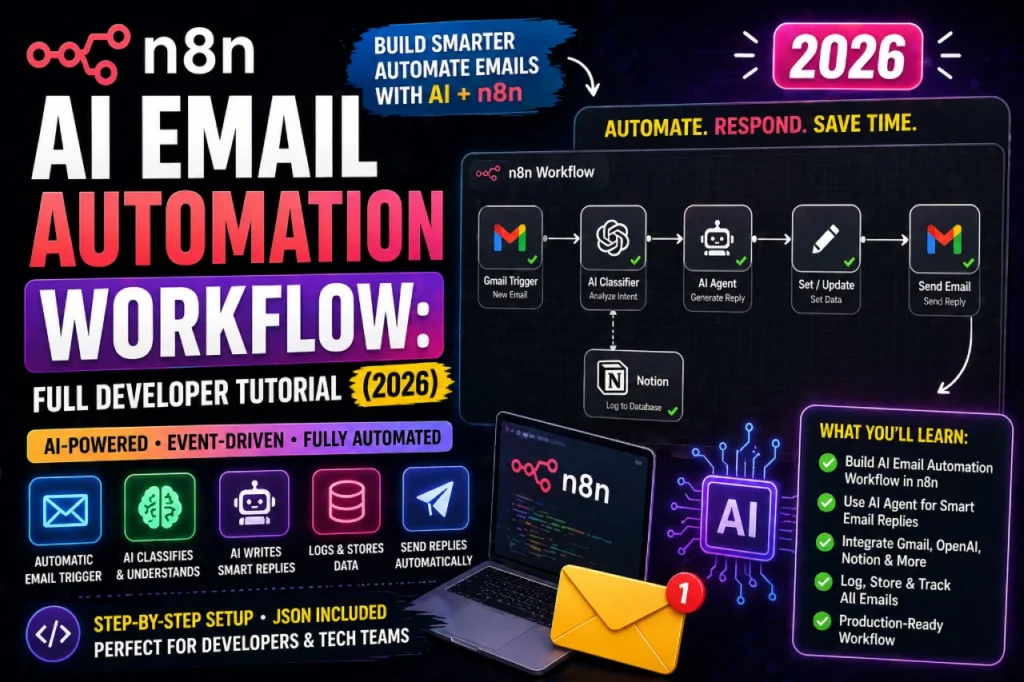
n8n is the most powerful free option on this list. Self-hosted means no execution limits, no per-task billing, and complete privacy — your emails never leave your server. The setup takes a few hours, but what you get is a production-grade pipeline that runs indefinitely for free.
Quick Overview of the Pipeline
IMAP Trigger (polls inbox every 60s)
↓
Code Node (HTML → clean plain text)
↓
OpenAI Node (classify: support / billing / sales / spam)
↓
Switch Router (branch by category)
↓
OpenAI Node (generate draft reply per category)
↓
Gmail Node (save as draft OR send automatically)
Minimal Setup — Docker in 3 Commands
# Pull and run n8n (SQLite, simplest setup)
docker run -it –rm \
–name n8n \
-p 5678:5678 \
-v ~/.n8n:/home/node/.n8n \
n8nio/n8n
# Open in browser
open http://localhost:5678
# For production with PostgreSQL → see full tutorial below
- Run n8n locally → access at localhost:5678 Create your account. You are now inside the workflow canvas — no cloud account needed.
- Add Email Trigger (IMAP) node → connect your inbox: Use Gmail App Password for Gmail. Set poll interval to 60 seconds. Mark emails as read on trigger.
- Add OpenAI node → paste classifier system prompt: Use GPT-4o-mini for classification (cheapest). Costs ~$0.0002 per email — practically free at normal volumes.
- Add Switch node → branch by category: Each output connects to its own draft generator node with a category-specific prompt.
- Add Gmail node → save as draft: Start with “Create Draft” mode — review AI output for 1–2 weeks before enabling auto-send.
Use Ollama for Zero API Cost Replace the OpenAI node with an Ollama node running llama3.1 locally. Your emails never leave your machine, there are zero API costs, and the quality is good enough for most classification and drafting tasks. Add Ollama to your Docker Compose:
image: ollama/ollama— pull llama3.1 once and it runs forever.
Pros
- Truly unlimited — no execution caps ever
- Full pipeline control — every node visible and editable
- Complete privacy — nothing leaves your server
- Free forever — no subscription, no lock-in
- Extend with RAG, Slack alerts, CRM sync, anything
Cons
- 2–3 hour initial setup (Docker + configuration)
- Requires a server or always-on computer to run
- OpenAI API costs for classification/drafting (minimal)
- You handle your own updates and maintenance
Method 05 of 05
Outlook + Microsoft Copilot Free Features
If you live in Outlook and Microsoft 365, you have AI email features built in that most people ignore. The free version has limits, but they are worth knowing before you pay for anything.
What Outlook Gives You Free
Suggested Replies
Similar to Gmail’s Smart Reply, Outlook shows 2–3 short reply suggestions below emails. Click one to pre-fill the compose window. Works on desktop, web, and mobile versions of Outlook.
Text Predictions (Smart Compose equivalent)
As you type in the compose window, Outlook suggests word and phrase completions in grey text. Press Tab to accept. Enable it in Outlook Settings → Mail → Compose and reply → Text predictions.
Copilot in Outlook (Free Microsoft Account)
If you have a Microsoft personal account (outlook.com, hotmail.com), you get limited Copilot access — including the ability to summarize email threads and get draft suggestions in the compose window.
- Open an email in Outlook web (outlook.live.com) Click the Copilot icon (sparkle) in the toolbar — it appears in the compose panel when replying.
- Click “Draft with Copilot” in the compose window: Type a short instruction about what the reply should say. Copilot generates a full draft.
- Use “Coaching by Copilot” to improve your own drafts: Write your draft first, then click Copilot → “Coaching by Copilot” — it analyzes tone, structure, and clarity and gives specific improvement suggestions.
Outlook Copilot Limitations on Free Accounts Free Outlook accounts get limited Copilot uses per day. For heavy usage, Microsoft 365 Personal ($69.99/year) unlocks fuller Copilot features. If you are already paying for M365 through work, your IT admin controls whether Copilot is available — check with them first.
Pros
- Already in Outlook — zero extra tools
- Coaching feature is genuinely useful for improving drafts
- Deep integration with Microsoft 365 ecosystem
Cons
- Free daily limits on Copilot features
- Outlook.com addresses only (not Gmail or other providers)
- Not automatic — still requires manual use per email
Which Method Should You Use?
Stop overthinking it. Here is a direct recommendation based on who you are:
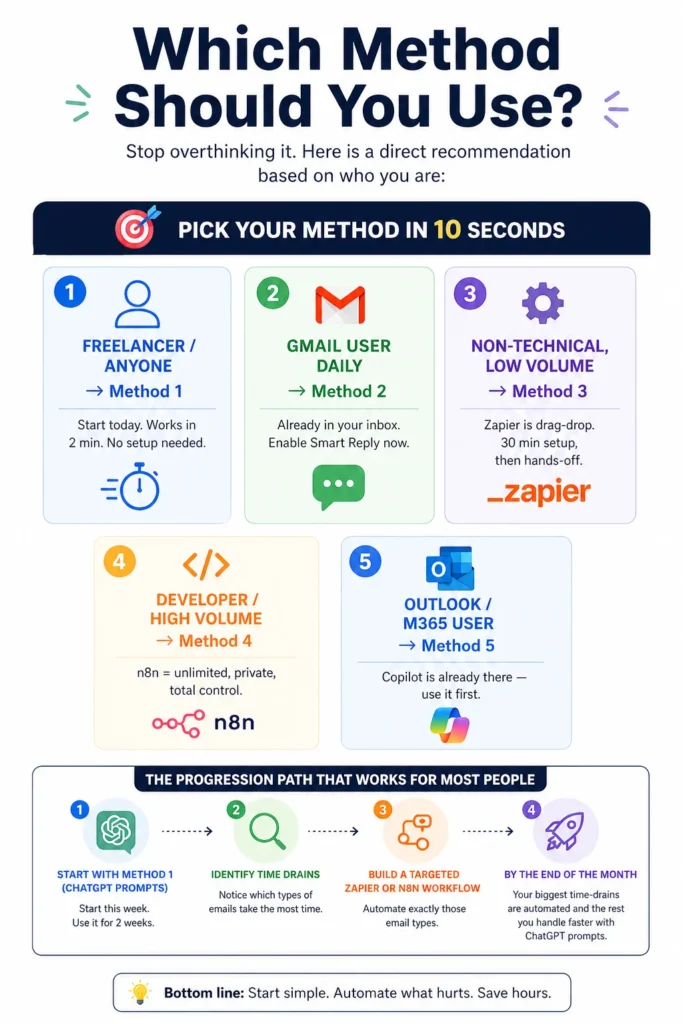
The progression path that works for most people: Start with Method 1 (ChatGPT prompts) this week. Use it for 2 weeks and notice which types of emails take the most time. Then build a targeted Zapier or n8n workflow for exactly those email types. By the end of the month, your biggest time-drains are automated and the rest you handle faster with ChatGPT prompts.
3 Mistakes That Make Free AI Email Tools Useless
These are the patterns that kill results and make people give up on AI email automation after two days. Avoid them and your experience will be completely different.
Using Vague Prompts and Blaming the AI
The single biggest factor in output quality is prompt specificity. “Write a reply to this email” produces garbage. “Write a reply under 80 words that declines the request, offers one alternative, and does not apologize more than once” produces something you can actually send. The AI is only as good as the instructions you give it.
Sending AI Drafts Without Reading Them
AI email tools make confident-sounding mistakes. They might get a date wrong, misunderstand a technical term, or produce a tone that does not match your relationship with the recipient. Even the best AI draft needs a 15-second read before you click send. This is especially important for client-facing emails where a wrong detail damages trust.
Trying to Automate Everything at Once
The teams that get the most from AI email automation start narrow. Pick one email type — follow-ups, or support FAQ replies, or invoice reminders — and automate that well. Once it is working reliably, expand to the next type. Teams that try to automate their entire inbox from day one end up with a half-working system they abandon within a week.
Frequently Asked Questions
Yes — Methods 3 (Zapier) and 4 (n8n) both enable fully automatic replies with no manual input required. However, we strongly recommend starting with auto-draft mode (AI creates the draft, you approve and send) for at least two weeks before enabling auto-send. This lets you catch the 5–10% of cases where the AI gets the tone or content wrong before they reach your recipients.
For straightforward business emails — scheduling, brief updates, simple replies — yes, it works well. For nuanced situations (negotiating terms, delivering bad news, complex client relationships) the free Gemini tier often produces generic outputs that need heavy editing. In those cases, Method 1 (ChatGPT with a detailed prompt) produces better results because you can give it more context and specific instructions.
Open chat.openai.com, create a free account (takes 2 minutes), and copy the starter prompt from Method 1 into a note on your phone or computer. The next email you need to write, paste the prompt + the email you are replying to into ChatGPT. Read the draft, make any edits, send. That is it — you are using AI email automation in under 5 minutes from now.