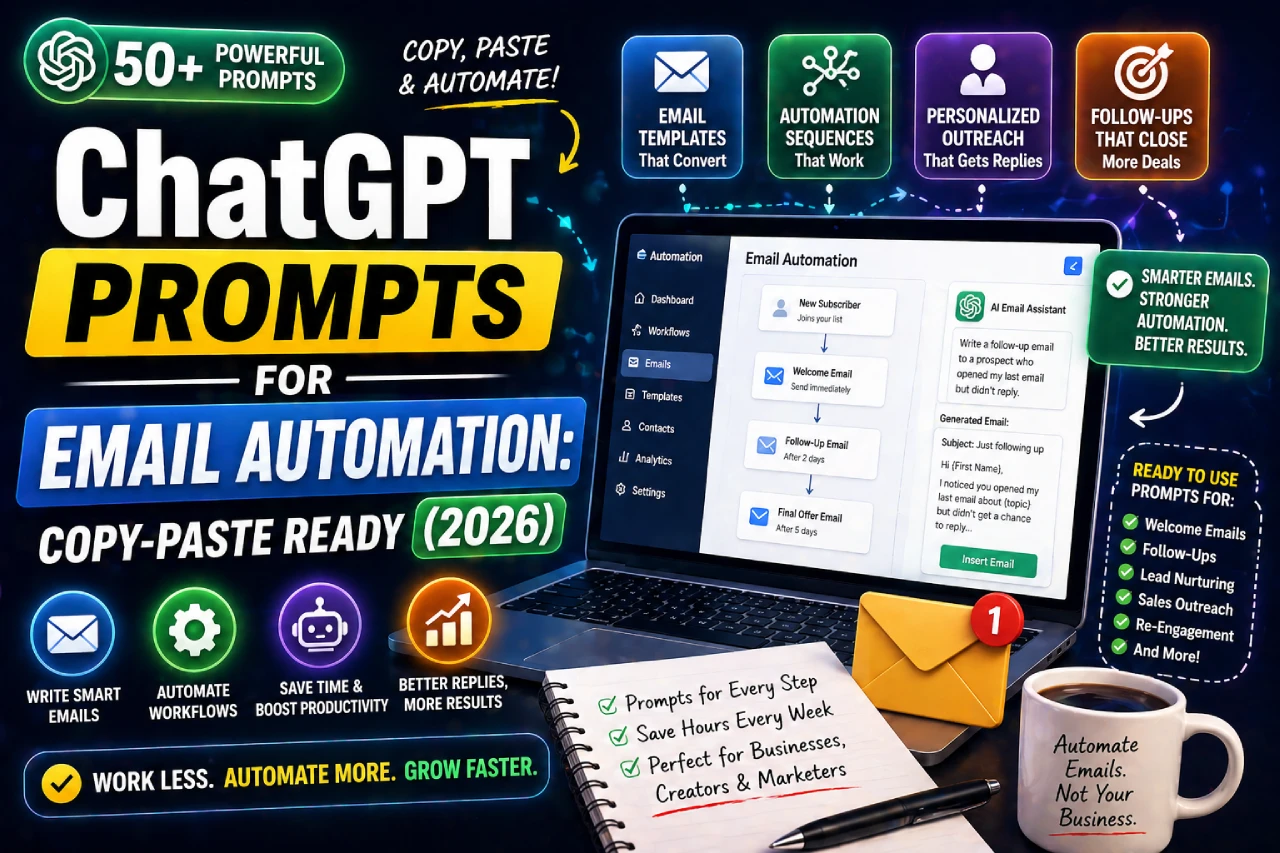
You do not need a paid email automation tool to start saving hours on email this week. If you have ChatGPT — even the free version — you already have everything you need.
This guide gives you 30+ copy-paste ready ChatGPT prompts organized by email type — replies, follow-ups, cold outreach, client emails, subject lines, and more. Each prompt is written to produce a result you can actually send, not just a starting point you spend 15 minutes fixing.
🚀 Want to automate your entire email workflow (not just prompts)?
Check out this step-by-step guide on AI-powered email automation that shows how to auto-reply, classify, and manage emails without manual work:
👉 AI Email Automation: The Complete Guide for 2026
Perfect if you want to go beyond prompts and fully automate your inbox.
How to Use These Prompts Correctly
Most people get bad results from ChatGPT email prompts because they treat the AI like a search engine. They type something vague like “write a follow-up email” and then complain that the output sounds robotic. The problem is the input, not the AI.
ChatGPT produces output in direct proportion to the quality of context you give it. The more specific you are about your situation, your tone, and the outcome you want, the closer the first draft will be to something you can actually send.
Three things every good email prompt needs:
- A role — Tell ChatGPT who it is writing as (“You are a freelance developer communicating with a client…”)
- The context — What situation is this email responding to? What happened before?
- The goal — What should happen after the recipient reads this email?
Weak Prompt — Bad Results
Write a follow-up email to a client who hasn’t replied.
Strong Prompt — Sends In 30 Seconds
You are a freelance web developer. I sent a project proposal to a client 5 days ago, no reply. Write a polite, 80-word follow-up that feels human, not pushy. Goal: get them to confirm or decline so I can move on.
Every prompt in this guide is already written the strong way — with role, context, and goal built in. You just need to swap in your specifics where you see the [brackets].
The Master Email Prompt Formula
Before diving into the specific prompts, save this master formula. It works for almost any email situation once you understand the pattern:
The Universal Email Prompt Template
You are [your role — e.g. "a freelance designer", "a SaaS founder", "a customer support agent"].
Write an email to [who you are writing to] about [the situation/context].
Background: [2-3 sentences of relevant context — what happened, what was said before, any important details]
Goal of this email: [what you want the reader to do or feel after reading]
Tone: [e.g. professional, warm, direct, apologetic, confident]
Length: Under [word count] words
Do not use exclamation marks. Sound like a human, not a template.
Chain Your Prompts: After ChatGPT gives you a draft, you can refine it in the same conversation without rewriting everything. Just add: “Make it 20 words shorter” or “Make the opening line more direct” or “Rewrite the last paragraph to sound less formal.” ChatGPT remembers the full context.
Prompts for Replying to Emails
These prompts turn any incoming email into a ready-to-send reply in under 60 seconds. Paste the email you received into the prompt where indicated.
General Smart Reply ( Prompt 1 )
You are my email assistant. I will paste an email I received below. Write a professional, concise reply in my voice. Keep it under 100 words. Match the tone of the original email — if it is casual, reply casually. If it is formal, stay formal. End with a clear next step or question.
Email I received:
[Paste the email here]
Replying to a Complaint or Angry Email ( Prompt 2 )
You are a customer support specialist at [company name]. A customer has sent an unhappy or frustrated email. Write a reply that:
– Acknowledges their frustration without being defensive
– Takes responsibility where appropriate
– Offers a clear next step or resolution
– Keeps the tone calm, empathetic, and professional
– Is under 120 words
Customer email:
[Paste the complaint email here]
Politely Saying No ( Prompt 3 )
Write a polite but firm email declining the following request. I want to say no without damaging the relationship. Keep it brief — under 80 words. Do not over-explain or apologize excessively. Offer a brief reason and, if appropriate, suggest an alternative.
The request I am declining:
[Describe what you are saying no to]
My relationship with this person:
[e.g. "a long-term client", "a recruiter I do not know", "a colleague"]
Summarising a Long Email Thread Before Replying ( Prompt 4 )
Summarise the following email thread in 5 bullet points. Then write a concise reply that addresses the most recent message and moves the conversation forward. Keep the reply under 100 words.
Email thread:
[Paste the full thread here]
Follow-Up Email Prompts
Follow-up emails are the ones people procrastinate on most — they feel awkward to write and easy to avoid. These prompts remove that friction entirely.
Following Up on No Reply ( Prompt 5 )
You are [your role]. I sent an email to [who] about [topic] on [date or "X days ago"] and have not received a reply.
Write a short, friendly follow-up email that:
– References the original email briefly
– Does not sound desperate or passive-aggressive
– Gives them an easy way to respond (a yes/no question or a simple next step)
– Is under 70 words
– Feels human, not automated
Following Up After a Meeting or Call ( Prompt 6 )
Write a follow-up email after a [meeting / call / demo] with [name or role]. The email should:
– Thank them briefly for their time
– Summarise the 2-3 key points we discussed: [list the key points]
– Confirm the next step agreed: [what was agreed]
– Close with a clear action or question
– Be under 120 words, professional but warm
Chasing an Overdue Invoice ( Prompt 7 )
You are a freelancer chasing an overdue payment. Write a follow-up email that is:
– Professional and firm, not aggressive
– References invoice number [invoice #] for [amount] due on [due date]
– Notes this is [first / second / final] follow-up
– Asks for payment confirmation or an update on timing
– Under 90 words
Do not use threats. Keep it factual and calm.
Re-Engaging a Cold Lead or Inactive Contact ( Prompt 8 )
Write a re-engagement email to a contact who was interested in [product/service] but went quiet after [last touchpoint].
The email should:
– Open with something relevant or new (not "just checking in")
– Reference their specific situation: [what you know about them or their problem]
– Present one concrete reason to reconnect now
– End with a low-commitment ask (a quick call, a yes/no question)
– Be under 100 words, conversational
Cold Outreach Prompts
Cold emails fail when they sound like they were written for everyone. These prompts force specificity — which is the only thing that actually gets replies.
Cold Email to a Potential Client ( Prompt 9 )
You are a [your profession] reaching out cold to a potential client. Write a cold email that:
– Opens with something specific about them or their company: [one specific thing you noticed — their blog, a recent post, a problem they likely have]
– Connects that observation to a result you can help them achieve
– Includes one concrete proof point: [a past result, number, or relevant example]
– Ends with a single low-friction ask (15-min call, reply to one question)
– Is under 120 words — no buzzwords, no hype
How to Write Cold Outreach Emails for Partnerships or Collaborations (Prompt 10)
Write a cold email proposing a collaboration or partnership between [my company/project] and [their company/project].
Context: [Why does this partnership make sense? What do both sides gain?]
The email should:
– Be peer-to-peer in tone — not salesy or submissive
– Make the value for them clear in the first two sentences
– Suggest a specific, easy next step
– Be under 100 words
Using Referrals or Mutual Connections in Cold Emails (Prompt 11)
Write a short cold email where I mention a mutual connection to open the door. Keep it natural — the name drop should feel relevant, not forced.
Mutual connection: [Name and how they know both of us]
My ask: [What I am hoping to discuss or achieve]
Recipient's role: [Who they are, what they do]
Under 80 words. Warm, direct, confident.
Client Communication Prompts
Client emails carry weight — the wrong tone at the wrong moment can damage trust that took months to build. These prompts handle the trickiest situations.
Project Status Update ( Prompt 12 )
Write a project status update email to a client. The email should be factual, clear, and reassuring.
Project: [project name]
Current status: [what is done, what is in progress]
Next milestone: [what happens next and when]
Any blockers or risks: [mention if relevant, or say "none currently"]
Keep it under 120 words. Professional but human. No unnecessary filler phrases like "Hope this finds you well."
Delivering Bad News or a Delay ( Prompt 13 )
Write an email to a client informing them of a delay or problem with their project. The email should:
– State the issue clearly and early — no burying the bad news
– Take ownership where appropriate without excessive apologising
– Explain the cause briefly: [reason for delay]
– Give a revised timeline: [new expected date]
– State what you are doing to prevent further delays
– Be under 130 words, direct and professional
Asking a Client for Feedback or Testimonial ( Prompt 14 )
Write a friendly email asking a client for a review or testimonial after completing a project. The email should:
– Reference the specific project: [project name]
– Feel like a natural conversation, not a form request
– Make it easy — tell them exactly what kind of feedback would help (2-3 sentences, specific outcome they saw)
– Offer to send a reminder if they are busy
– Be under 90 words
Raising Your Rates with an Existing Client ( Prompt 15 )
Write a professional email to an existing client informing them of a rate increase. The email should:
– Be direct — state the new rate and effective date early
– Briefly justify the increase without over-explaining: [reason, e.g. market rates, increased scope, years together]
– Reaffirm the value of the relationship
– Give them reasonable notice: [how many weeks/months notice]
– Be under 100 words, confident not apologetic
New rate: [amount]
Effective date: [date]
Subject Line Prompts
The subject line determines whether your email gets opened or ignored. These prompts generate multiple options so you can choose the one that fits best.
Generate 10 Subject Lines for Any Email ( Prompt 16 )
Generate 10 subject line options for an email about [topic] being sent to [audience].
Mix these styles across the 10 options:
– Curiosity-based (makes them wonder)
– Direct and specific (clear benefit, no mystery)
– Personal (feels like it is written just for them)
– Urgency (time-sensitive reason to open)
Rules: Keep each under 50 characters. No clickbait. No ALL CAPS. No exclamation marks. Sound like a human wrote them, not a marketing team.
Subject Lines for Cold Email ( Prompt 17 )
Write 8 cold email subject lines for an email to [recipient role] at [company type] about [your offer or reason for reaching out].
Make the subject lines feel like they are from a real person, not a campaign. Include some that are under 5 words. Avoid spam trigger words like "free", "guarantee", "limited time". Vary the tone: some direct, some curious, some personal.
Prompts for Actual Automation Workflows
These prompts are different — they are not for writing individual emails. They are designed to be used inside automation tools like Zapier, n8n, or the OpenAI API to power recurring email workflows.
How to Use These: These prompts go into the “system prompt” or “AI instruction” field of your automation tool — not into ChatGPT directly. They tell the AI how to handle every email that comes through the workflow, not just a single email.
Email Classifier ( System Prompt 18 )
You are an email classification assistant. When given an email, classify it into exactly ONE of the following categories:
– SUPPORT_REQUEST — customer needs help with a product or service
– BILLING_QUERY — questions about invoices, payments, or pricing
– SALES_INQUIRY — potential customer asking about products or services
– FEEDBACK — review, suggestion, or complaint about experience
– PARTNERSHIP — collaboration or business development proposal
– SPAM — promotional email, newsletter, or irrelevant message
– OTHER — does not fit any category above
Respond with ONLY the category label. No explanation. No punctuation. Just the label.
Auto-Draft Reply Generator ( System Prompt 19 )
You are an email assistant for [company/person name]. Your job is to draft a professional reply to incoming emails.
Rules:
– Keep replies under 100 words
– Match the tone of the incoming email
– Be helpful and specific — do not give generic responses
– If you do not have enough information to answer, draft a reply that acknowledges the email and asks the one most important clarifying question
– Never make up facts, prices, or commitments
– Do not use filler phrases like "Hope you are well" or "Please do not hesitate"
– End every reply with a clear next step
Write only the email body. No subject line. No signature.
Email Summariser System ( System Prompt 20 )
Summarise the following email in exactly 3 bullet points. Each bullet point should be one sentence. Cover: (1) what the sender wants or needs, (2) any deadlines or urgency, (3) what action is required from the recipient.
Format your response as:
• [What they want]
• [Urgency or deadline]
• [Required action]
If a point does not apply, write "None" for that bullet.
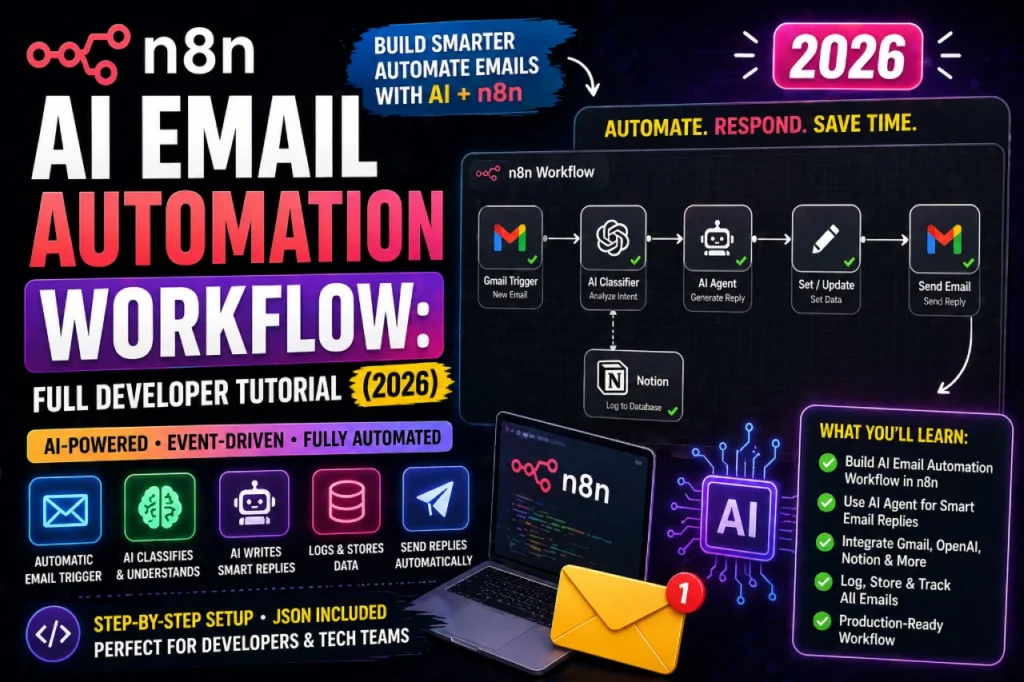
n8n AI Email Automation — How to Use These Prompts in a Real Workflow Full developer tutorial for building automated email pipelines
5 Prompt Mistakes That Kill Your Results
These are the patterns that produce the generic, robotic outputs people complain about. Avoid them and your results will immediately improve.
| Mistake | Why It Fails | Fix |
|---|---|---|
| Too vague “Write a follow-up email” | No context = generic output. ChatGPT cannot infer your relationship, situation, or goal. | Add role, context, and goal to every prompt |
| No word count | ChatGPT defaults to too long. Long emails get lower reply rates. | Always specify “under X words” |
| No tone instruction | Default AI tone is corporate and stiff — nobody actually writes like that. | Add “sound like a human, not a template” or specify the exact tone |
| Accepting the first draft | First drafts are starting points. The best output comes after 1-2 refinement prompts. | Follow up with “make it shorter” or “make the opener more direct” |
| Not personalising the variables | Leaving [COMPANY NAME] literally in the prompt produces a [COMPANY NAME] in your email. | Always replace every bracket with actual information before running |
Quick Reference — All 20 Prompts at a Glance
| # | Prompt | Best For | Word Count |
|---|---|---|---|
| 1 | General Smart Reply | Everyone | <100 |
| 2 | Replying to Complaint | Support teams | <120 |
| 3 | Saying No Politely | Freelancers | <80 |
| 4 | Summarise Thread + Reply | Productivity | <100 |
| 5 | Follow-Up, No Reply | Freelancers, sales | <70 |
| 6 | Post-Meeting Follow-Up | Business | <120 |
| 7 | Chase Overdue Invoice | Freelancers | <90 |
| 8 | Re-Engage Cold Lead | Sales, SaaS | <100 |
| 9 | Cold Email to Client | Freelancers, agencies | <120 |
| 10 | Partnership Outreach | Founders, developers | <100 |
| 11 | Cold Email via Referral | Networking | <80 |
| 12 | Project Status Update | Freelancers, PMs | <120 |
| 13 | Delivering Bad News | Project managers | <130 |
| 14 | Asking for Testimonial | Freelancers | <90 |
| 15 | Raising Your Rates | Freelancers | <100 |
| 16 | 10 Subject Lines | All email types | N/A |
| 17 | Cold Email Subject Lines | Outreach | N/A |
| 18 | Email Classifier (System) | n8n / Zapier | Automation |
| 19 | Auto-Draft Generator (System) | n8n / Zapier / API | Automation |
| 20 | Email Summariser (System) | n8n / Zapier / API | Automation |
Frequently Asked Questions
Yes, all prompts in this guide work with the free version of ChatGPT (GPT-3.5 or GPT-4o mini). You will get slightly better output with GPT-4 or GPT-4o on the paid plan, but the free tier handles email drafting very well for most use cases.
Three options: (1) Save them in a Notion or Google Doc you can copy from — fastest. (2) Use ChatGPT’s custom instructions (paid) to store your role and tone preferences permanently. (3) For true automation, paste the system prompts into Zapier or n8n so they run on every email without any manual copying at all.