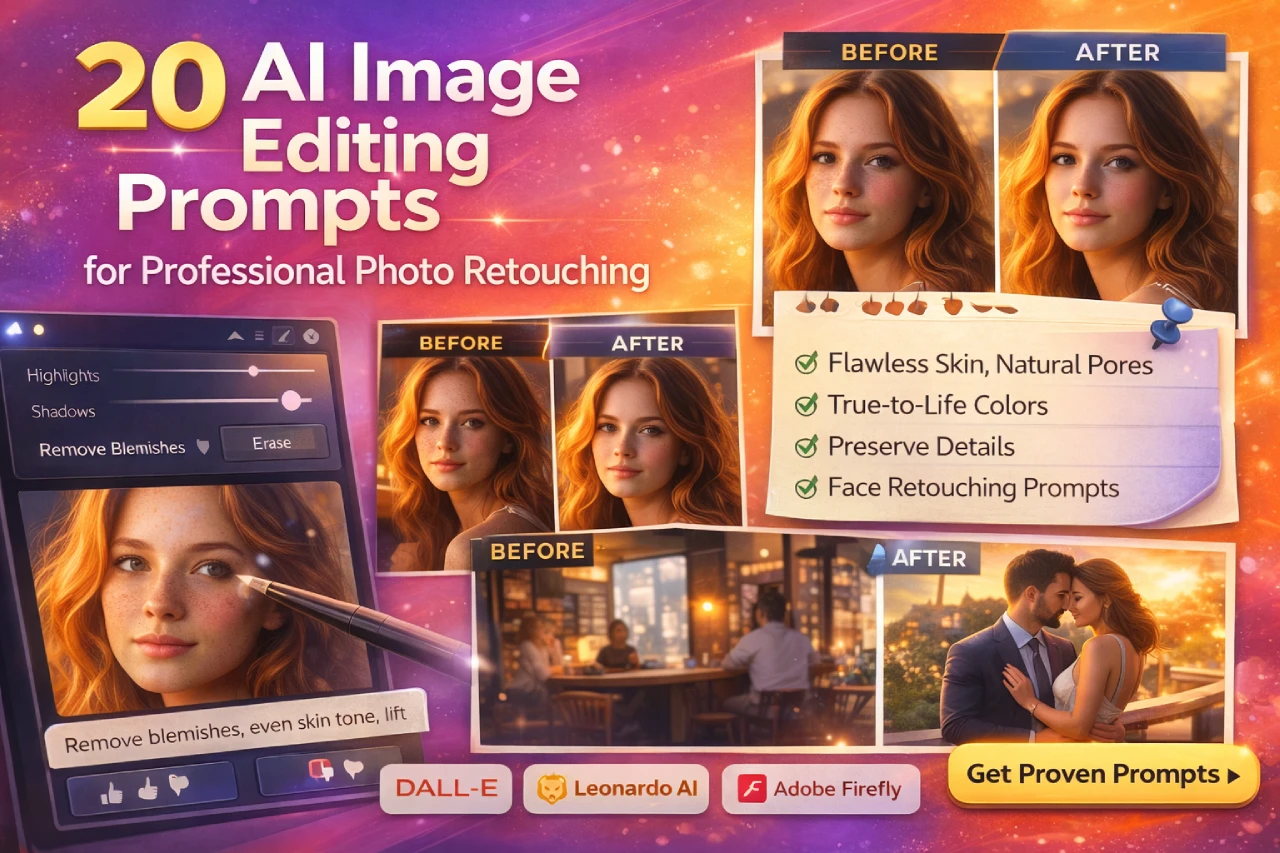
Let’s be real—AI “photo editing” tools can swing from magic wand to chaos gremlin in about three clicks. One second you’re removing a stray hair; the next you’ve turned your model into a different person. The goal here isn’t to make things fake-perfect—it’s to make them professionally real.After spending weeks testing dozens of retouch-ready AI tools (DALL·E in-painting, Leonardo AI Canvas, Firefly Generative Fill, you name it), I’ve built a list of 20 AI image-editing prompts that polish photos without sanding away their character. Use them as direct inputs or rewrite them to match your workflow.
Why Subtle Editing Wins Every Time
Good editing never shouts. It just quietly fixes lighting, cleans the frame, and lets emotion stay untouched. The trick is to give the AI exact boundaries—what to change and what not to touch.
- Protect identity. Keep faces, proportions, and skin texture.
- Match light direction. Don’t add highlights that fight the sun.
Preserve color logic. Shadows should stay shadows.
How to Write Editing Prompts That Don’t Over-Process
- Start with intention. What’s wrong with the photo? Say it outright.
- Describe, then limit. Tell the AI exactly what not to alter.
- Add photography language. “Fill light,” “exposure lift,” “soft vignette,” “cool-tone balance.”
End with tone words. “Editorial,” “natural,” “real daylight,” “film grain preserved.”
20 Professional AI Image Editing Prompts
1 – 5 : Skin & Face Retouching
- Retouch minor blemishes and under-eye shadows only; keep natural skin texture, freckles, and pores visible; lighting unchanged; no smoothing or reshaping.
- Even out exposure on face; lift midtones slightly; preserve wrinkles and natural highlights; keep facial identity 100 percent.
- Reduce shine on forehead and nose; maintain texture detail; color tone stays neutral and realistic.
- Adjust jawline shadows for balanced contrast; do not slim or reshape face; subtle editorial light polish.
- Remove temporary redness or blemishes; retain authentic texture; warm skin tone preserved.
6 – 10 : Lighting & Color Corrections
- Increase overall exposure by 0.3 stop equivalent; maintain highlight detail; add soft golden-hour warmth; realistic white balance.
- Cool down color temperature slightly for winter tone; keep shadows neutral; film-grade contrast curve.
- Add gentle side fill light simulation; no overexposure; retain rim-light integrity.
- Correct mixed indoor lighting—neutralize yellow cast while preserving candle warmth; cinematic balance.
- Lift shadow detail in backlit subject; maintain natural dynamic range; avoid flattening contrast.
11 – 15 : Object & Background Fixes
- Remove random bystanders and distractions from background; reconstruct with authentic depth and perspective.
- Replace dull sky with slightly overcast clouds; match color temperature and lighting direction; natural gradient.
- Erase litter or cables on street; preserve surface texture and reflections.
- Clean reflections in glass window; keep transparency realistic; light distortion intact.
- Extend backdrop seamlessly; maintain existing grain and tonal roll-off; no pattern repetition.
16 – 20 : Style & Mood Adjustments
- Apply subtle cinematic color grade—warm highlights, cool shadows, soft contrast; keep neutral skin tones.
- Add gentle vignette to frame subject; maintain exposure balance; no artificial blur.
- Simulate vintage film grain at low opacity; no texture overlay on faces; overall tone creamy and editorial.
- Adjust saturation for print output—reduce oversaturated reds and blues; retain color harmony.
- Blend composite lighting between foreground and background for unified mood; preserve depth cues.
Common Editing Mistakes (and Fixes)
- Over-beautifying. Smooth = fake. Keep pores.
- Global color shifts. Warm skin, cool shadows—it’s contrast, not confusion.
- Erasing identity. If the person looks “different,” you went too far.
Unreal shadows. Light should follow logic; pick a single direction.
Quick Pro Tips for Realistic AI Edits
- Work in passes: fix lighting → remove distractions → grade tone.
- Use soft brushes or region masks if your tool allows—it prevents haloing.
- Compare side-by-side with original; if it screams “after,” dial it back.
- Add a hint of film grain to blend AI-edited areas with original texture.
FAQs
DALL·E 3’s in-painting, Firefly Generative Fill, and Leonardo AI Canvas all do solid localized edits.
Yes—most tools accept “don’t modify” instructions or masked regions. Always specify.
Describe the direction and temperature of light (“warm sunlight from left, 5 p.m.”). Consistency beats filters.
If realism matters, yes. Focal length and aperture help the AI respect depth and blur.
Ask for blemish removal only and emphasize keep skin texture visible.
Too much smoothing or clarity boost. Bring back a little noise or grain—it tricks the eye into “real.”
Conclusion: Edit Like a Photographer, Not a Filter
AI editing isn’t about perfection; it’s about precision. The best results look like you did nothing at all, only that the photo somehow feels right. Keep texture sacred, protect identity, and use light as your paintbrush.